
Employee Login Help
Have questions about your Employee Self Service (ESS) Login?
Check out the free resources below.
What is Employee Self Service (ESS)?
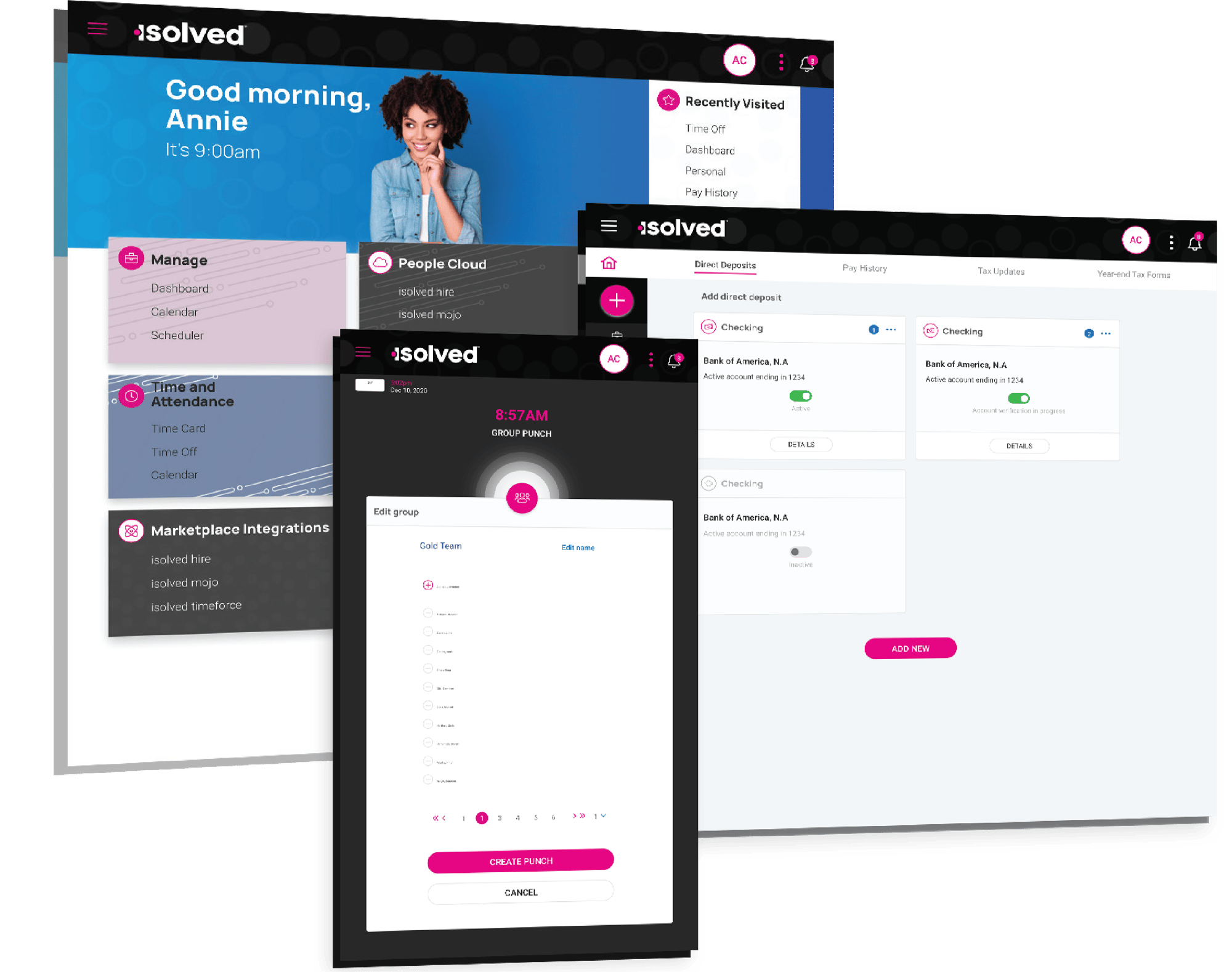
Employees and managers get instant access to the tools they need, from HR to payroll, talent, and performance to time tracking. It’s all built into one seamless technology. The modern user interface empowers your employees to control their information from anywhere, on any device.
Isolved can be used across different platforms including desktop, tablet, and in a mobile app.
- Pay history to view earnings at a glance
- Full paycheck details and an archive
- Modern time cards with simplified tracking
- Filterable calendar with schedules, absences, hourly summary
- Time-off balances and requests
- Year-end forms including W-2s and 1099s
- Emergency contacts, beneficiaries, and dependents
- A customized experience at every login on mobile or tablet
Learn How to Use Employee Self Service
How to Get Started with Your Employee Self Service Account
- Set up your account
- Create login credentials
- Access your dashboard
- Complete initial profile setup
How to Access and Manage Information in Employee Self Service
- View pay stubs and tax documents
- Update personal information
- Check benefits and time-off details
- Navigate your employee dashboard
Download Step-by-Step Help Guides
Access clear instructions for setting up and managing your Employee Self Service account.
New User Setup Instructions
Step-by-step guide to create your account and get started with Employee Self Service.
Existing User Setup Instructions
Learn how to access your account, update details, and manage your information.

Frequently Asked Questions about Employee Self Service
-
A. Visit www.aholawebpr.com/cloudservice and enter your Employee Self Service login credentials.
-
A. Yes. We are thrilled to introduce the upgraded isolved People Cloud Mobile App, now available in both the Apple and Android app stores. This cutting-edge app offers your employees seamless access to crucial HR information, covering everything from time off to pay and more, all accessible on any device.
-
A. To view your paystub, click on Pay and Tax > Pay History on the left navigation. To see paystubs from the previous year, click the drop-down (located on the right side) and select the appropriate year.
-
A. To view your paystub, click on the hamburger menu icon, and select Pay and Tax > Pay History. To see paystubs from a previous year, click the drop-down (located on the right side) and select the appropriate year.
-
A. Once logged into your account, click on Time and Attendance > Time Off > +Time Off located on the right
